|
| | |
|
Test Project on PDA
The easiest way of deploying your Project to an Android mobile device is using the "Test on PDA" feature. |
|
This feature is similar to the "Test Project on Simulator" one. To use it, you need to connect your mobile device to the PC with an USB cable.
To test your Project on the mobile device without being prompted for these options, right click the "Test Project on PDA" button.
Note: Don't forget to enable the "USB debugging" option on the Android device, normally under "Developer options" in the settings menu.
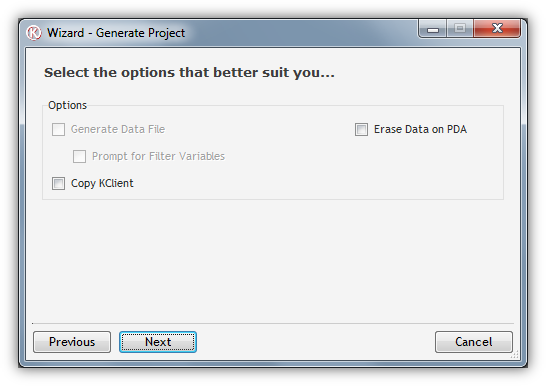
Generate Data File
|
|
– |
|
If you check this option your Project, Kalipso Designer will fetch the data of the server, from the tables defined as "ToPDA" in their properties, and send it along with the Project.
This option is only available if you have offline Database Tables. |
|
|
|
|
|
| Prompt for Filter Variables |
|
– |
|
Use this option to define the value of the Variables used in the "Filter" property of the tables defined as "ToPDA".
This option is only available if you check "Generate Data File". |
| |
|
|
|
|
| Erase Data on PDA |
|
–
|
|
If you check this option, it means that before integrating your Project, Kalipso will clear it from the mobile device as if never existed, including data. |
| |
|
|
|
|
| Copy KClient |
|
–
|
|
Checking this option, you'll be forcing the update of Kalipso framework on the PDA.
|
| |
|
|
|
|
| |
|
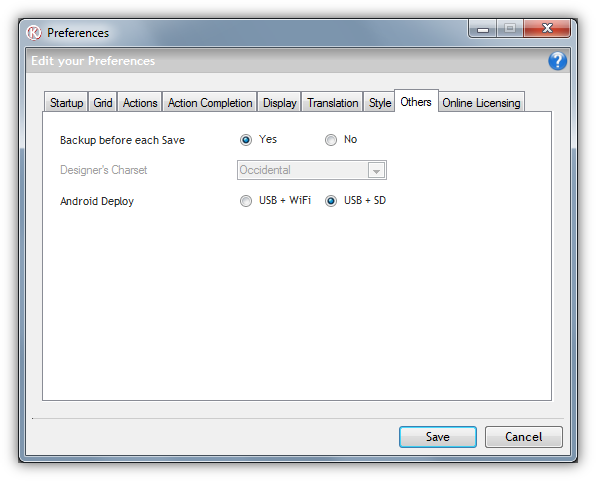
| The deployment can be done in two ways: |
| |
|
|
|
|
| USB + WiFi |
|
– |
|
With this option, Kalipso will try to install KClient through USB, if necessary, and will send instructions to it to fetch the Project from the server. No user input is required but the device must be in the same network as the PC. |
| |
|
|
|
|
| USB + SD Card |
|
– |
|
With this option, Kalipso will try to install KClient through USB, if necessary, and will send the Project to the mobile device's SD Card and tell KClient to process it. No user input is required. This option is normally preferred unless the device does not have an SD Card, internal or external. |
| |
|
|
|
|
| You can change the default method under menu Edit -> Preferences -> Others |
| |
|
|
|
|
 |
| |
|
|
|
|
| |
| |
|
|
|
|
|
|
-
In order to connect through USB, Kalipso needs the mobile device's Drivers to be installed. For your convenience, Kalipso provides a generic USB Driver for Android devices. To install it, go to the Designer folder and, under the Android folder, run PdaNet.
-
In order to be able to interact with the mobile device, Kalipso uses Android SDK's adb.exe. For your convenience, no configuration or setup is required. However, if you already have Android SDK installed, you can go to menu Tools -> Paths and change the "Android adb path" to use the one you have installed.
|
Updated: 3/25/2013 11:29 AM |
| |
|
|
|



